Pixel Avatar Maker
Turn any photo into a square pixel avatar for Discord, Twitch, or X — auto square crop, retro palettes, and a sharp PNG download that survives platform rescaling. Free, no signup.
See it in action


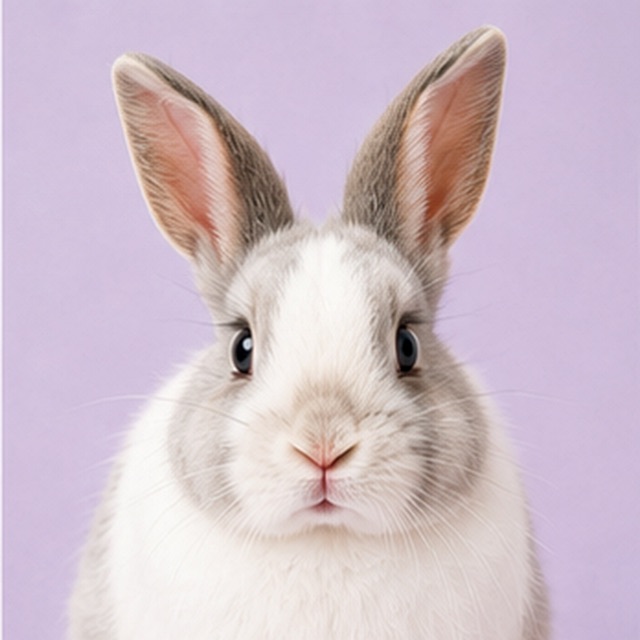
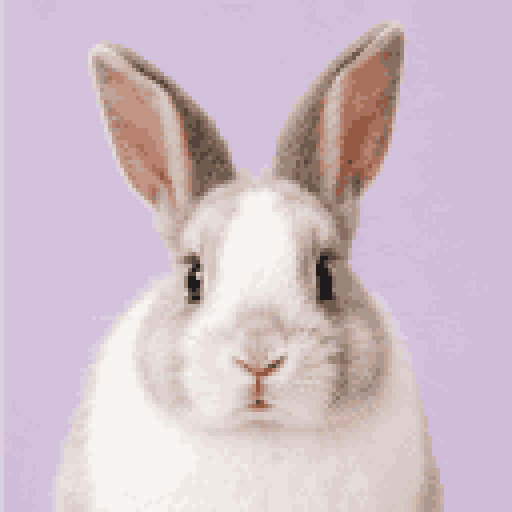
Upload your image
PNG, JPG, WEBP or GIF. Drag, click, or paste — everything is processed locally in your browser.
Adjust the result
Tune the controls and watch the preview update instantly. Nothing is uploaded to a server.
Download
Export a clean, sharp result with no watermark, ready to use anywhere.
How to make a great pixel avatar
- Square crop is automatic
- Every platform displays avatars square (or a circle cut from a square), so your upload is center-cropped to a square before it is pixelated. Frame your face in the middle of the photo for the best automatic crop, or pre-crop in your phone gallery if the subject sits off to one side. What is inside the square is all that matters from here on.
- Pixel size
- Profile pictures render small — often 40 pixels wide in a chat list — so resist the urge to go fine. The 128×128 default keeps a face clearly recognizable while reading as pixel art; 64×64 is chunkier and bolder; 32×32 becomes an icon of a face rather than a likeness. The test that matters: zoom the preview out to thumbnail size and check that it still reads as you.
- Palette
- Auto builds the palette from your photo and keeps natural skin tones — the right choice when you want recognizably you, in pixels. Locking a retro palette flips the goal to style: PICO-8 gives a bright, modern game look, Game Boy turns anyone into a moody four-green portrait, and NES lands in between. Locked palettes are also how a group of friends or a whole team gets matching avatars from different photos.
- Colors
- With the palette on Auto, 16–24 colors keeps eyes, hair, and skin distinct — faces need more shades than logos do. Going lower reads as more retro but starts sacrificing likeness around 12. If the face looks flat, add colors before touching anything else.
- Brightness and contrast
- These run before color selection, so they decide which tones the palette spends its budget on. A small contrast lift separates your face from the background and is the single most reliable improvement for dim or flat photos. Very dark shots want brightness first — otherwise half the palette gets wasted on near-blacks.
- Export
- Download is a high-resolution PNG with hard nearest-neighbor pixel edges. Upload that file directly to Discord, Twitch, or X and let the platform downscale it — the pixels stay crisp, which is not true if you shrink it yourself in a normal image editor first.
Best avatar photos
- A clear, front-facing headshot with the face filling most of the frame
- Good lighting with visible contrast between face and background
- A simple, plain, or blurred background
- Pets photographed close-up at eye level
- PNG cutouts with transparent backgrounds — the transparency is preserved
Crop or fix first
- Full-body or far-away shots — crop to head and shoulders first
- Busy backgrounds — they steal colors and cells from your face
- Very dark photos — brighten before uploading, not after
- Group photos — a pixel avatar has room for exactly one subject
How to make a pixel avatar that still looks like you
The entire craft of a good pixel avatar comes down to one budget: how many of the grid’s cells land on your face. A 128×128 avatar sounds generous, but if your face occupies a quarter of the frame, it is being drawn with roughly 64 cells of width — and at 40-pixel chat-list size, that quarter-frame face becomes an unreadable smudge. Crop tight, head and shoulders, face centered, and the same grid suddenly has double the resolution where it counts.
After the crop, likeness lives in three places: the eyes, the hair silhouette, and the face-to-background contrast. Keep 16–24 colors so the eyes stay distinct from skin, and check the preview at actual size — not zoomed in. Pixel art is judged at viewing distance, and an avatar’s viewing distance is a thumbnail.
What size does each platform need?
The practical answer for every platform is the same: export the high-resolution PNG this pixel avatar maker produces and let the platform downscale it. The pixels are upscaled with hard edges before download, so they survive rescaling far better than a native-size export would. For reference, the sizes the platforms actually use:
- Discord — profile pictures are stored at 128×128 and shown as small as 40 px in chat. Server emoji and stickers have their own sizes, but a 128-grid avatar reads perfectly.
- Twitch — profile images upload at up to 256×256 and appear tiny under stream titles; bold, chunky avatars outperform detailed ones.
- X — avatars upload at 400×400 and display as a circle. Keep your face centered so the circular crop does not clip it.
- Reddit, GitHub, Slack — all take a square upload of 256px or more and downscale aggressively; the same exported PNG covers every one of them.
Choosing colors for a pixel profile picture
Faces are gradients — skin alone can span a dozen tones between highlight and shadow — so avatars want more colors than most pixel art. The Auto palette with 20–24 colors is the likeness-first setting: it keeps skin natural and hair separated from background. Dithering helps here too, scattering two skin tones to fake a third and keeping cheeks from banding into stripes.
The style-first route runs the other way. Lock PICO-8 and drop to 16 colors, and the avatar reads as a character from a modern indie game. Lock the four-green Game Boy palette and any face becomes an unmistakably retro portrait — an approach that works especially well for streamers whose channel art already leans nostalgic. Neither direction is wrong; they are just different answers to whether the avatar should say this is me or this is my aesthetic.
Photo conversion vs a pixel character creator
Search for a pixel avatar maker and you will find two unrelated kinds of tool. Dollmaker-style pixel character creators let you assemble a character from drawn parts — pick a hairstyle, pick an outfit — which produces charming art that looks like everyone else using the same parts, and never particularly looks like you. This tool is the other kind: a converter that starts from your actual photo, so the output inherits your real features, your pet’s actual markings, your real lighting.
The two combine well, for what it is worth: people often convert a photo here for their main profile and keep a dollmaker character for alt accounts. But when the goal is a pixel art avatar that friends recognize in a chat list before reading your name, starting from a photo is the only route that gets there.
Matching avatars for a team, server, or friend group
A set of avatars converted from different photos usually looks like a set of different styles — different lighting, different color casts, nothing shared. The fix is one shared constraint: everyone converts at the same grid size with the same locked palette. Sixteen PICO-8 colors applied to ten different faces produces ten obviously-related portraits, because the palette is doing the visual branding.
This works for esports rosters, Discord server staff, stream teams, and office Slack workspaces alike. Agree on two numbers — say, 128 and PICO-8 — and the whole set matches regardless of who took which photo on which phone. Since the tool is free, runs in the browser, and needs no account, sending someone a link and two settings is the entire onboarding.
Frequently asked questions
What size avatar should I download?
Just download the PNG as exported — it is already upscaled with hard pixel edges to a high resolution that Discord, Twitch, X, and every other platform downscale cleanly. Do not resize it yourself in a normal editor; that softens the pixels.
Is my photo uploaded to a server?
No. The crop, the pixelation, and the export all run in your browser on your own device. Your photo never leaves your machine, which is exactly what you want for personal pictures.
Why is my avatar cropped square?
Every platform displays avatars as a square or a circle cut from one, so the tool center-crops your photo to a square first. Center your face in the frame — or pre-crop to head and shoulders — for the best result.
What pixel size keeps a face recognizable?
The face itself needs roughly 48–64 cells of width. With a tight head-and-shoulders crop, the 128×128 default gives you that comfortably; 64×64 still works with a very tight crop; 32×32 turns the face into a bold icon rather than a likeness.
How do I make a pixel avatar for Discord specifically?
Crop to your face, keep the 128×128 default, use Auto palette with about 24 colors, and export. Discord stores avatars at 128×128 and shows them as small as 40 px, so check the preview at thumbnail size before downloading.
Can I get a transparent background?
Yes — upload a PNG cutout that already has a transparent background and the transparency is preserved through the pixel conversion and in the export. Cutout tools in your phone gallery work fine as the first step.
Is this a pixel art character creator?
No — it converts your photo rather than assembling a character from drawn parts. If you want a from-scratch character, use a dollmaker-style creator; if you want an avatar that actually looks like you or your pet, photo conversion is the right tool.
Can I make matching avatars for my whole server or team?
Yes — have everyone use the same grid size and the same locked palette (PICO-8 at 128×128 is a good default). The shared palette makes avatars from completely different photos read as one set.
Which retro palette looks best for a pixel avatar?
PICO-8 for a bright modern-indie look, Game Boy for a bold four-green retro portrait, and NES for authentic 8-bit color. Auto stays truest to your actual appearance — pick by whether you want likeness or style.
Is it free, and is there a watermark?
Free, no signup, no watermark, no limits. Make as many pixel avatars as you want and download every one.
Related pixel tools
Full pixel-art conversion, not just square avatars.
Lean fully retro with locked console palettes.
The general converter for any image.
The step-by-step guide for Discord and Twitch.
Hide a face instead of stylizing it.