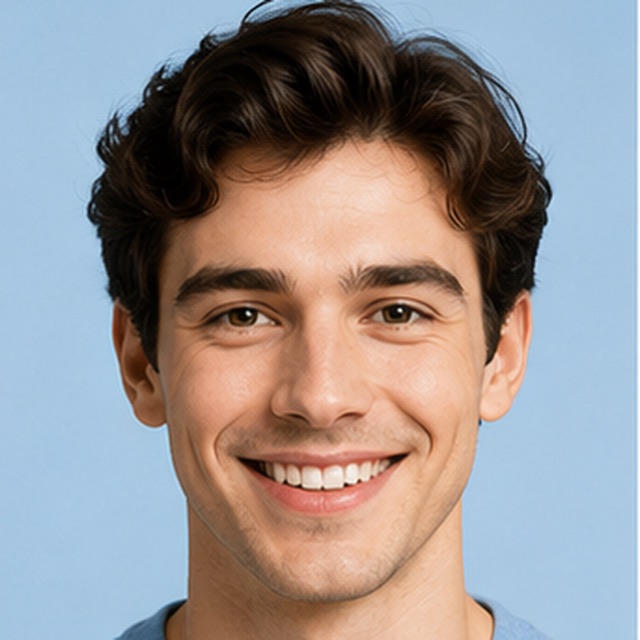

Start with a centered face
Avatars are square and often shown in a circle, so anything near the edges gets cropped. Use a photo where your face is centered and fills the frame. The avatar maker center-crops to a square automatically, so framing matters more than dimensions.
Do not go too small
Profile pictures already display small, so a very low pixel size makes your face unrecognizable. 64–128 keeps you identifiable while still looking clearly pixel. Drop to 32 only if you want a bold, blocky 8-bit style.
Tip Test how it looks shrunk down — if you can still tell it is you at thumbnail size, it works.
Pick a palette that fits your vibe
Auto keeps natural skin tones for a realistic pixel portrait. A retro palette like PICO-8 or Game Boy gives a stylized, gamer-flavored look that stands out in a chat list. Try both and see which reads better small.
Export and upload
Download the PNG — it exports at a high resolution, and Discord, Twitch, and X will downscale it to fit. If your source photo had a transparent background, that transparency is preserved for a clean cutout.