Pixel Art Grid Generator
Turn any image into a printable pixel art grid with bold lines every 10 cells and a numbered color legend. Print the chart and follow it cell by cell for beads, cross stitch, mosaics, or hand-drawn pixel art.
See it in action

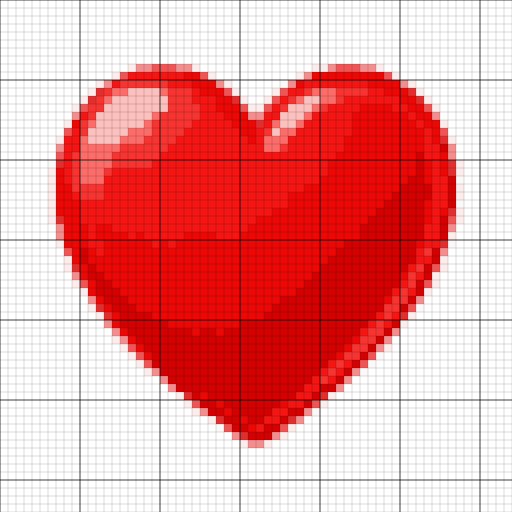
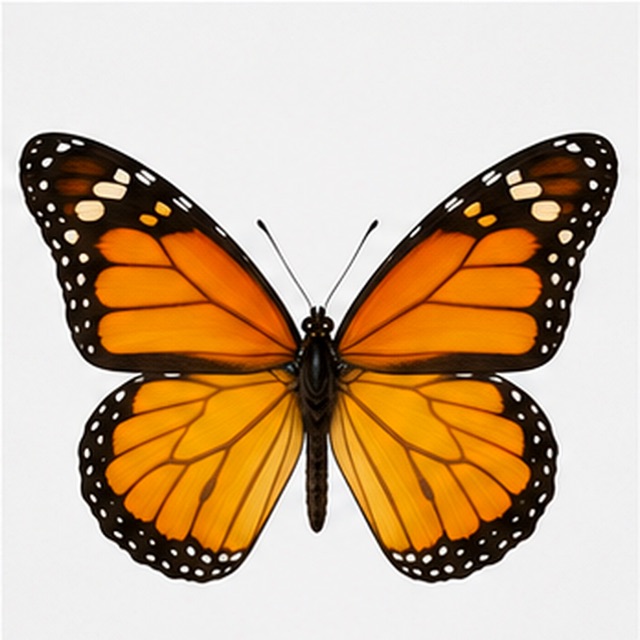
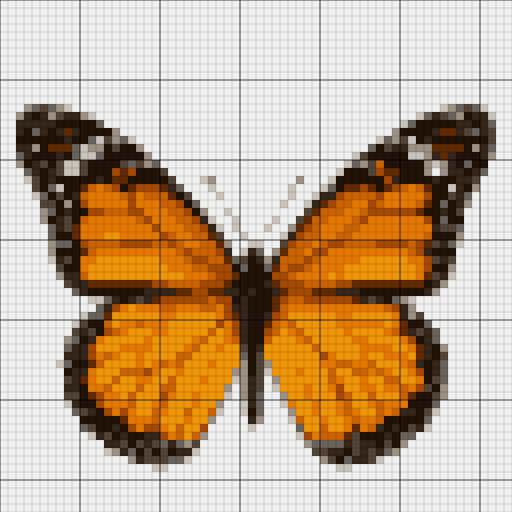
Upload your image
PNG, JPG, or WEBP. The pixel art grid is generated locally in your browser — nothing is uploaded to a server.
Set grid size and colors
Choose how many cells wide the grid is and how many colors to keep. The numbered legend and cell counts update live.
Print the grid
Download a paginated, printable PDF with grid lines, bold every-10 markers, and a numbered color legend — or export a PNG.
How to get a clean, followable grid
- Grid size
- The width in cells decides how much detail your pixel art grid keeps and how long the project takes by hand. A 29-cell grid matches a standard square pegboard; 40–60 cells suits cross stitch motifs; 80 or more only makes sense for large mosaics or wall charts. Start smaller than you think — every extra cell is one more square to count, place, or stitch.
- Bold lines every 10 cells
- The grid overlay draws a heavier line every 10 cells, splitting the chart into 10×10 blocks. That is how counted-craft charts have worked for decades: you count within a block instead of across the whole page, so losing your place costs seconds, not minutes. The bold lines carry through to the printable PDF exactly as you see them on screen.
- Auto palette and numbered legend
- The generator reduces your image to a small palette automatically, then numbers each color. The legend shows every color as a swatch with its number and an exact cell count, so a cell marked 4 always means color 4. Use the counts to shop for beads, floss, or tiles before you start — no guessing and no mid-project supply runs.
- Color count
- Fewer colors make a chart dramatically easier to follow. Aim for 8–16 colors on photos and detailed artwork; simple logos and cartoon characters often look better at 4–8. If two similar shades keep confusing you while you work, lower the count until they merge — a chart you can actually read beats one that is technically more accurate.
- PDF export
- The chart exports as a paginated PDF: the full grid split across pages at a readable cell size, plus the numbered color legend. It is deliberately brand-free — cells carry plain numbers, not bead codes or floss brands — so the same printable pixel art grid works for Perler, Hama, Artkal, DMC floss, mosaic tiles, or graph paper.
Works for
- Bead and cross-stitch patterns with exact counts
- Bold logos, emoji, and pixel characters
- Classroom pixel-art and coordinate activities
- Mosaic and paint-by-grid layouts
- Minecraft pixel art grids for planning builds
Tweak first
- Photos with soft gradients — lower the color count
- Very large grids — slow to follow by hand
- Fine text and thin lines — they blur at small sizes
- Low-contrast images — boost contrast before uploading
What a pixel art grid is and who uses one
A pixel art grid is an image broken into uniform square cells, each filled with a single flat color — the same format as a counted cross stitch chart or a bead pattern. Because every cell is one unit of work, the grid doubles as a set of instructions: place this color here, then move to the next square.
That simple idea serves a wide range of people. Bead crafters lay grids over pegboards. Cross stitchers read them as stitch charts. Mosaic artists scale them up to tile layouts. Teachers use them to introduce coordinates, area, and early programming concepts. Pixel artists sketch on them before opening an editor, and Minecraft builders convert them block by block. A generic grid maker only draws lines over a photo; a pixel art grid generator also flattens each cell to one color and numbers the palette — which is what turns a picture into a chart you can actually follow.
How to make a pixel grid from an image
Start with a picture that reads well at small sizes: a logo, an emoji, a cartoon character, or a photo with one clear subject. Upload it and the tool converts it into a pixel art grid immediately — no account, no watermark, and the image never leaves your browser.
Then shape the result with two controls. Grid size sets how many cells wide the chart is; color count sets how many distinct colors the palette keeps. Watch the live preview: when you can still recognize the subject at a glance, the settings are right. Finally, download the printable PDF. The whole process takes under a minute, so it is worth re-running with different sizes — a 30-cell and a 60-cell version of the same image are very different projects.
Choosing grid dimensions for different crafts
The right grid size depends on the physical material, not the image. For cross stitch, divide your target size in inches by your fabric count: on 14-count aida, 14 stitches fit in one inch, so a 70-cell-wide pixel art grid stitches up at 5 inches across. On 18-count aida, the same chart shrinks to just under 4 inches.
For fuse beads, match the pegboard: standard square boards are 29×29 pegs, so a 29-cell grid fills one board exactly and a 58-cell grid spans four. Mosaic makers work backwards from tile size — 100 cells at 10 mm tiles is a meter-wide piece. And if you plan to draw the design by hand, count the squares on your graph paper first; a grid that fits the page with room for the legend is far more pleasant to fill in.
Using the numbered color legend
Every chart comes with a numbered legend: each palette color gets a number, a swatch, and an exact cell count. Work it the way experienced stitchers work a chart:
- Gather materials from the counts first — the legend tells you exactly how many beads, stitches, or tiles each color needs.
- Work one color at a time across a 10×10 block instead of jumping around the chart.
- Use the bold lines to anchor your counting — find the block, then the cell, and never count from the edge of the page.
- Cross off finished blocks on the printout so a coffee break never costs you your place.
Add a grid to a photo for classrooms and workshops
Teachers use this page as a fast way to add a grid to a photo and turn it into a hands-on lesson. A gridded image makes abstract ideas concrete: coordinates become “color row 3, column 7,” area becomes counting cells, and image resolution becomes something students can see — the same photo at 20 cells versus 60 cells explains pixels better than any slide.
For craft workshops, print one pixel art grid per participant and let everyone work from the same legend. Because the chart is brand-free and numbered, the group can mix materials — one person stitches while another places beads — and every result still matches the original image.
Printing tips for a chart you can follow
The PDF export paginates the grid automatically, splitting large charts across A4 or letter pages at a readable cell size. Print at 100% scale rather than fit-to-page, so cells stay the same size on every sheet, then tape the pages together along the bold lines.
On a black-and-white printer, the numbers carry the chart: every cell is identified by its legend number, so the printout works even when shades are hard to tell apart in ink. Keep the legend page next to the chart while you work, and if the palette runs past ten colors, consider lowering the color count — fewer numbers are easier to track. For a quick on-screen reference, the PNG export keeps the grid overlay and legend in a single image.
Frequently asked questions
Can I use this grid for cross stitch?
Yes. A pixel art grid and a counted cross stitch chart are the same format. Divide the grid width by your fabric count to get the finished size — a 70-cell grid on 14-count aida stitches up at 5 inches wide.
How do I add a grid to a photo?
Upload the photo, choose how many cells wide the grid should be, and the tool draws the grid overlay instantly with a bold line every 10 cells. Download the result as a printable PDF or a PNG.
What can I use the pixel art grid for?
Any counted craft: Perler and Hama beads, cross stitch, diamond painting, LEGO and tile mosaics, latch hook, classroom activities, or as a reference for drawing pixel art by hand on graph paper.
Does it count the cells for me?
Yes. The numbered legend lists an exact cell count for every color plus the total, and the counts update live as you change grid size or colors — so you can plan materials before you start.
Why is there a bold line every 10 cells?
It splits the chart into 10×10 blocks, the standard convention on counted-craft charts. You count within a small block instead of across the whole grid, which makes losing your place nearly impossible.
Can I print a large grid across multiple pages?
Yes. The PDF export paginates automatically: big charts are split across A4 or letter pages at a readable cell size, with the numbered color legend included. Print at 100% scale and tape the sheets together.
Is the chart tied to a bead or floss brand?
No. Cells are keyed to plain legend numbers rather than brand codes, so one printable pixel art grid works with Perler, Hama, Artkal, DMC floss, mosaic tiles, or whatever material you already have.
Can I make a Minecraft pixel art grid?
Yes — set the grid to your build footprint and place blocks cell by cell from the chart. If you want automatic block matching instead of a numbered legend, use the Minecraft pixel art generator.
What grid size should I start with?
Around 30–40 cells wide suits most first projects: enough detail to recognize the subject, small enough to finish. Go to 60 cells or more only when the craft supports it, such as a large cross stitch piece or a mosaic.
Is my image uploaded anywhere?
No. The pixel art grid generator runs entirely in your browser — the conversion, the legend, and the PDF export all happen on your device. It is free, with no signup and no watermark.