Image to Pixel Converter
Turn any photo, logo, or picture into clean pixel art online. Free, fast, no signup.
See it in action
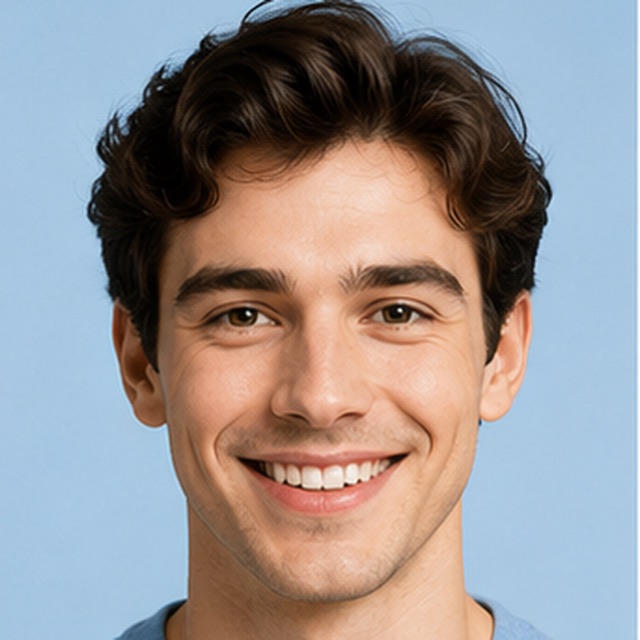
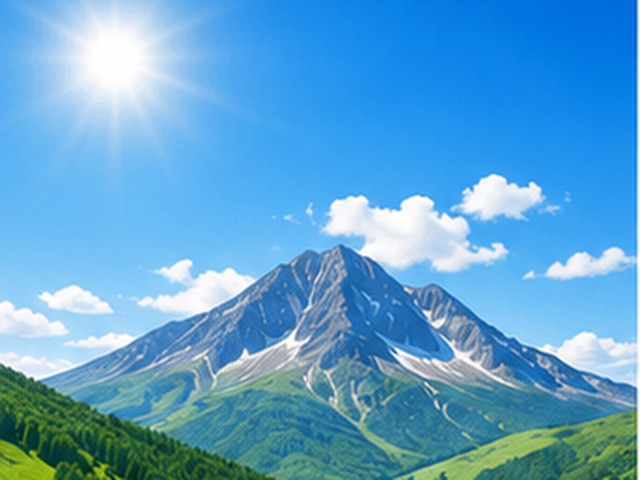
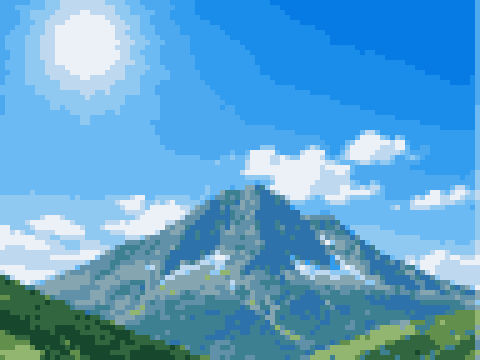
Drag the handle to compare the original with its pixel-art result. Photos, portraits, logos — the same engine handles them all.

From image to pixel art in three steps
Upload your image
PNG, JPG, WEBP or GIF. Drag, click, or paste — everything is processed locally in your browser.
Adjust size & colors
Set pixel size, color count, palette, and dithering. The preview updates instantly as you tweak.
Download
Export a clean, sharp PNG with no watermark, ready for avatars, games, or prints.
How to get clean pixel art
Every control changes the look in a specific way. Here is what each one does and when to reach for it.
- Pixel size
- The number of cells across, and the control that most defines the result. Smaller numbers give chunky, abstract pixels; larger numbers keep more detail. 32–64 suits icons and avatars, 96–160 suits detailed art. Start at 96 and step down until the shapes read cleanly — the best setting is usually one step before the subject falls apart.
- Colors
- How many colors survive the conversion. Fewer colors (8–16) give the flat, deliberate retro look most people want from a pixel art converter; more colors (32–64) stay closer to the original photo. If a result looks muddy or noisy, cutting the color count is the fastest single fix.
- Palette
- Auto pulls the palette from your image, which keeps the result faithful. Retro presets like Game Boy, NES, or PICO-8 lock every output color to a real era set instead — the quickest way to make converted art look intentional, and to keep a whole batch of images stylistically matched.
- Dithering
- Off gives clean flat blocks — right for logos and hard-edged art. Floyd–Steinberg and Atkinson blend two palette colors in a fine texture that fakes extra shades, which rescues skies, skin, and gradients without adding colors. It is the same trick 90s games used, and it is why their four-color screens looked so rich.
- Brightness / Contrast / Saturation
- These run before color selection, so they change which colors the converter keeps — not just how the result looks. Dull photos often pixelate muddy; nudging contrast and saturation up separates the subject from the background and gets punchier, cleaner pixel art out of the same image.
Works great
- High-contrast images with a clear subject
- Logos, icons, and simple illustrations — they convert almost perfectly
- Photos where the subject fills the frame
- Character art and mascots with strong outlines
- Anything where bold shapes matter more than fine detail
Needs a tweak first
- Busy backgrounds — crop to the subject first
- Tiny details or text — they blur below their pixel size
- Low-contrast, washed-out photos — raise contrast first
- Very dark shots — brighten so the palette is not wasted on near-blacks
What this image to pixel converter actually does
Under the hood the conversion is a three-step pipeline. First your image is downscaled to the grid you chose — a 3000-pixel photo becomes, say, 96 cells across, each cell averaging the region it replaced. Second, quantization reduces those colors to a small palette, either built from the image or locked to a retro set. Third, the small grid is scaled back up with nearest-neighbor sampling, so every cell stays a crisp, hard-edged square instead of blurring.
That is what separates a real pixel converter from a mosaic filter: two deliberate reductions — resolution and color — tuned by you, live in the preview. Every control on this page maps onto one of those two reductions, which is why the settings are easy to reason about once you have converted an image or two.
Pixel art converter vs pixel art generator
The names get used interchangeably, but they are different machines. A pixel art converter transforms an image you already have — your photo, your logo, your screenshot — and the output preserves your composition exactly. An AI pixel art generator invents a new image from a text prompt: useful when you have no source image, but you get its composition, its subject, and a reroll button instead of an edit.
A hand-drawn approach in a pixel art maker like Aseprite sits at the third corner: total control, hours of work. Converting is the fast middle path — and converting first, then hand-polishing the exported 1× PNG in an editor, is dramatically faster than drawing from scratch.
One engine, six workflows
Everything on this site runs the same core engine with different defaults. The mode cards above the fold jump straight to each workflow: Pixel Art is the general conversion this page opens with. Avatar square-crops a photo and sizes it for Discord, Twitch, and X. Minecraft maps your image to real block colors and prints a material list and blueprint. Grid produces a printable chart with a numbered color legend for beads, cross stitch, and classroom crafts. Sprite exports transparent, engine-ready PNGs at 16–128 pixels. Pixelate is the odd one out — it hides faces and private details rather than making art.
Because the engine is shared, skills transfer: the pixel size, color, palette, and dithering intuition you build here applies to every mode. Convert an image once on this page, and you already know how to drive the other five tools.
Why everything runs in your browser
This site converts your image to pixels entirely on your device — the file is decoded, processed, and re-encoded locally, and nothing is uploaded. That is a privacy guarantee first: personal photos, client logos, and unreleased game art never touch a server. But it is also why the preview updates in real time as you drag sliders, with no upload wait and no processing queue, even for large files.
Local processing also means there is nothing to sign up for and nothing to meter. The tool has no accounts, no daily conversion caps, and no watermark — close the tab and no trace of your image remains anywhere.
From first upload to finished pixel art
A reliable first pass: crop your image so the subject fills the frame, upload it, and set pixel size to 96. Cap colors at 16. If the image is a photo, turn on Floyd–Steinberg dithering; if it is a logo or flat art, leave dithering off. Look at the preview at actual size — zoomed out, the way it will really be seen — and adjust one control at a time: pixel size down for a bolder look, colors up if detail you care about vanished, contrast up if the subject melts into the background.
Then try one locked palette before you download. PICO-8 flatters almost everything, and seeing your image snap into a fixed era set is the fastest way to understand what the palette control is for. Export the PNG, and if you want a specialized result — an avatar, a bead chart, a Minecraft build — carry the same image into the matching mode above.
Frequently asked questions
Is this image to pixel converter really free?
Yes. Every feature is free — palettes, dithering, adjustments, and PNG export — with no signup and no watermark on your download. There is no daily limit either.
Are my images uploaded to a server?
No. The whole conversion runs inside your browser on your own device. Your image is never sent anywhere, which makes the tool safe for personal photos and unreleased work — and conversion effectively instant.
What file types can I use?
PNG, JPG, WEBP, and GIF, up to 20 MB. Transparent PNGs keep their transparency through to the export. There are dedicated pages for each format with format-specific advice.
What pixel size should I choose?
Start around 64–128 for detailed pixel art, 32 for game icons or bold avatars. Smaller sizes look stronger and more abstract; larger sizes keep more of the original detail. Step down until the shapes tighten, then stop.
Is this a pixel art generator or a converter?
A converter — it transforms an image you already have, deterministically, instead of inventing one from a text prompt the way an AI pixel art generator does. Same input and settings always give the same output, and your composition is preserved.
How do I convert an image to pixel art for a game?
Convert at the exact size your engine expects — commonly 16, 32, or 64 — with a locked palette so every asset matches. The Image to Sprite page automates those defaults, including transparent backgrounds.
Why does my result look blurry or muddy?
Almost always too many colors or too large a grid. Cut colors to 12–16 first, then lower the pixel size. If the subject blends into the background, raise contrast — it changes which colors are kept.
Can I use the results commercially?
You own what you export — use it in games, merch, or client work. Just make sure you have the rights to the image you upload, since converting does not change its copyright.
Does it work on my phone?
Yes. Upload, adjust, and download all work in mobile browsers, and the editor controls are touch-friendly. Processing happens on-device there too.
Related pixel tools
Tuned for portraits, pets, and busy photos.
Square-crop any photo into a Discord or Twitch avatar.
Get block colors, counts, and a printable blueprint.
Add a printable grid and color legend for crafts.
Blur or block out faces, plates, and private details.